
Preface - This is a useful privacy setting, however affects usability and reliability with the WOL guest network. The address given to our network by your mac is what identifies it on the network, and how our system knows that you are authorized and have already accepted the terms and conditions. Leaving the setting set to rotating will appear to our network as a brand new device, which will require re-registering on the network. Follow the steps below to disable this setting for the WOL network only
- Open System settings
- Click on "Wi-Fi"
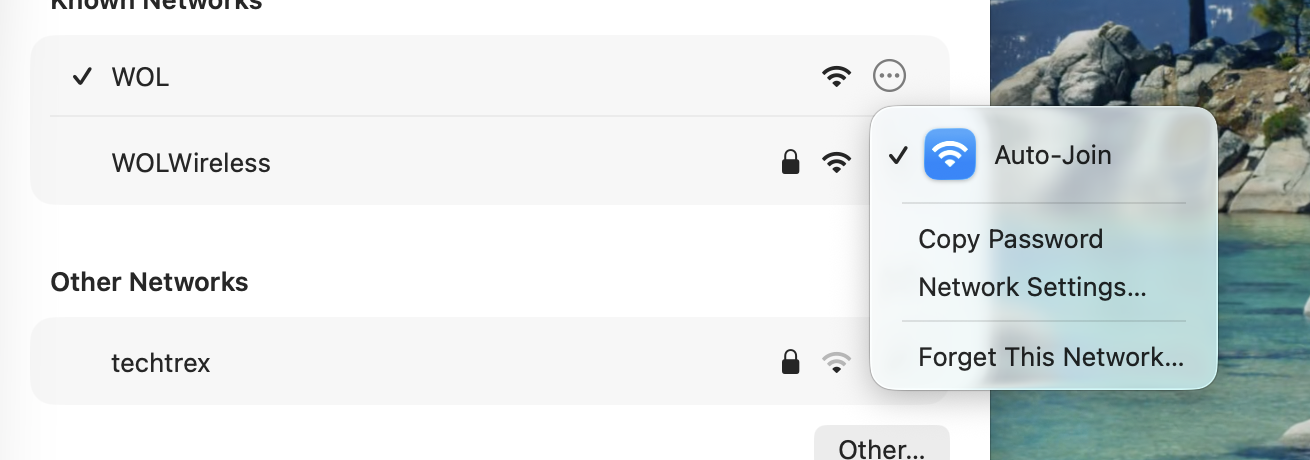
- Click the 3 dots on the right of the "WOL" Wifi network:
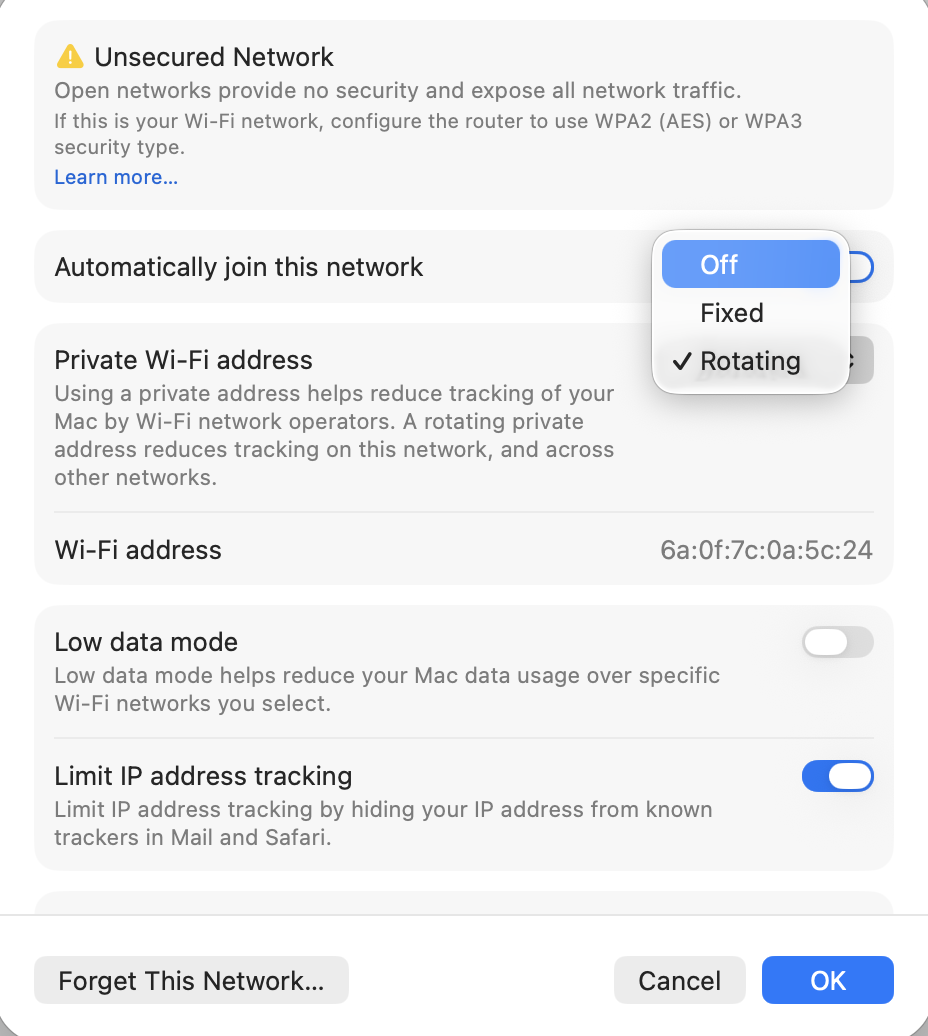
- Click "Network Settings..."
- Under "Private Wi-Fi address", click on "Rotating" and set it to "Off"
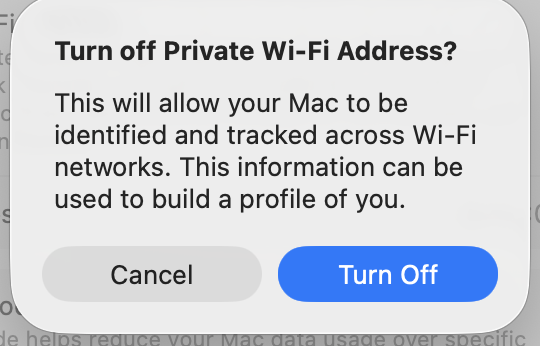
- Click "Turn Off" on the pop-up window to confirm the change
- Click "OK" in the bottom right to save
- Turn off, then turn back on the WiFi on your Mac
- Reconnect to the WOL network
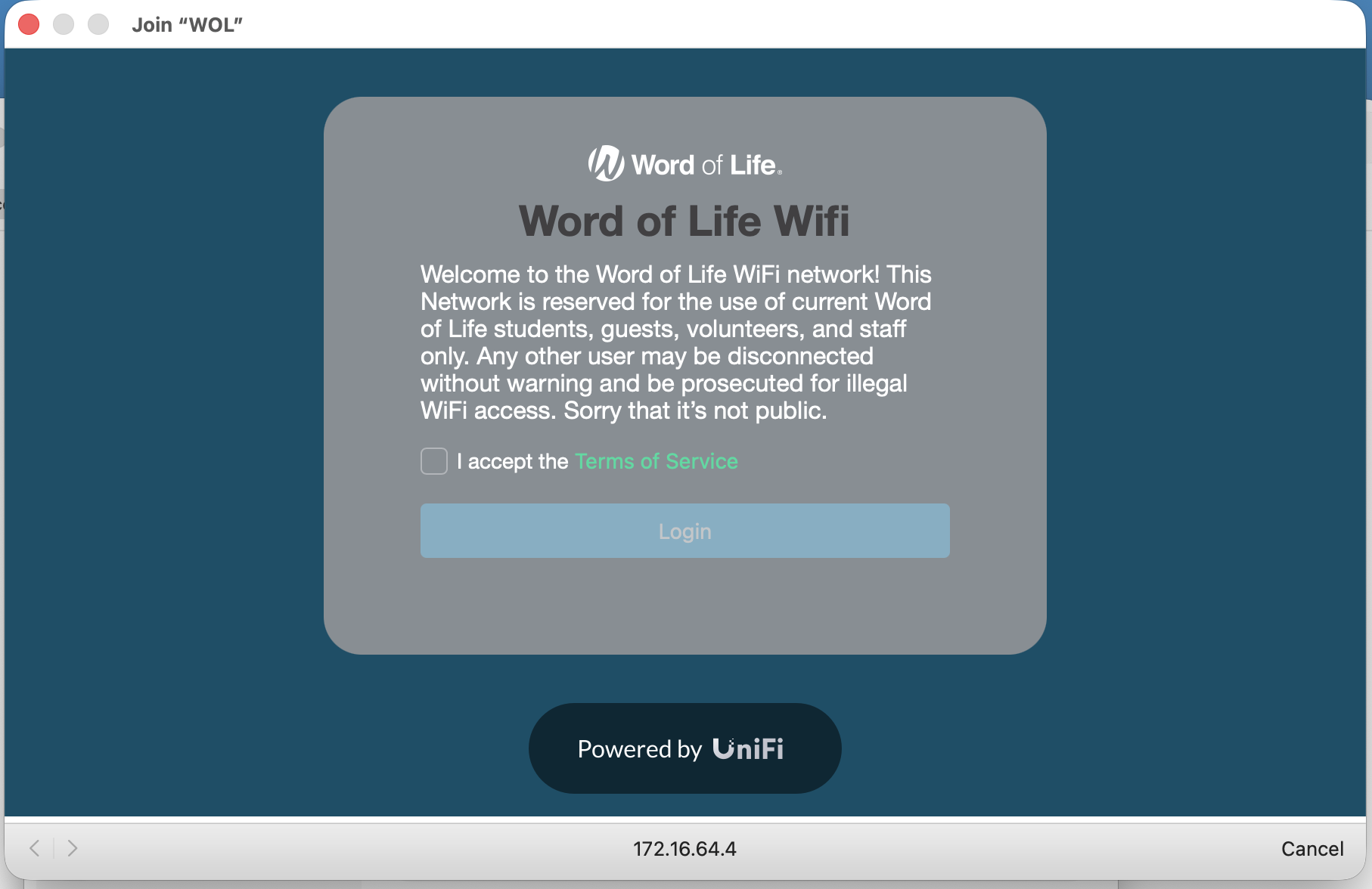
- The initial connection terms and conditions should appear shortly. Check the box as normal
- Click login
- Pat yourself on the back for a job well done

If you have any issues, click here, or email helpdesk@wol.org
More information about this from apple directly: https://support.apple.com/en-us/102509